
Getting started
-
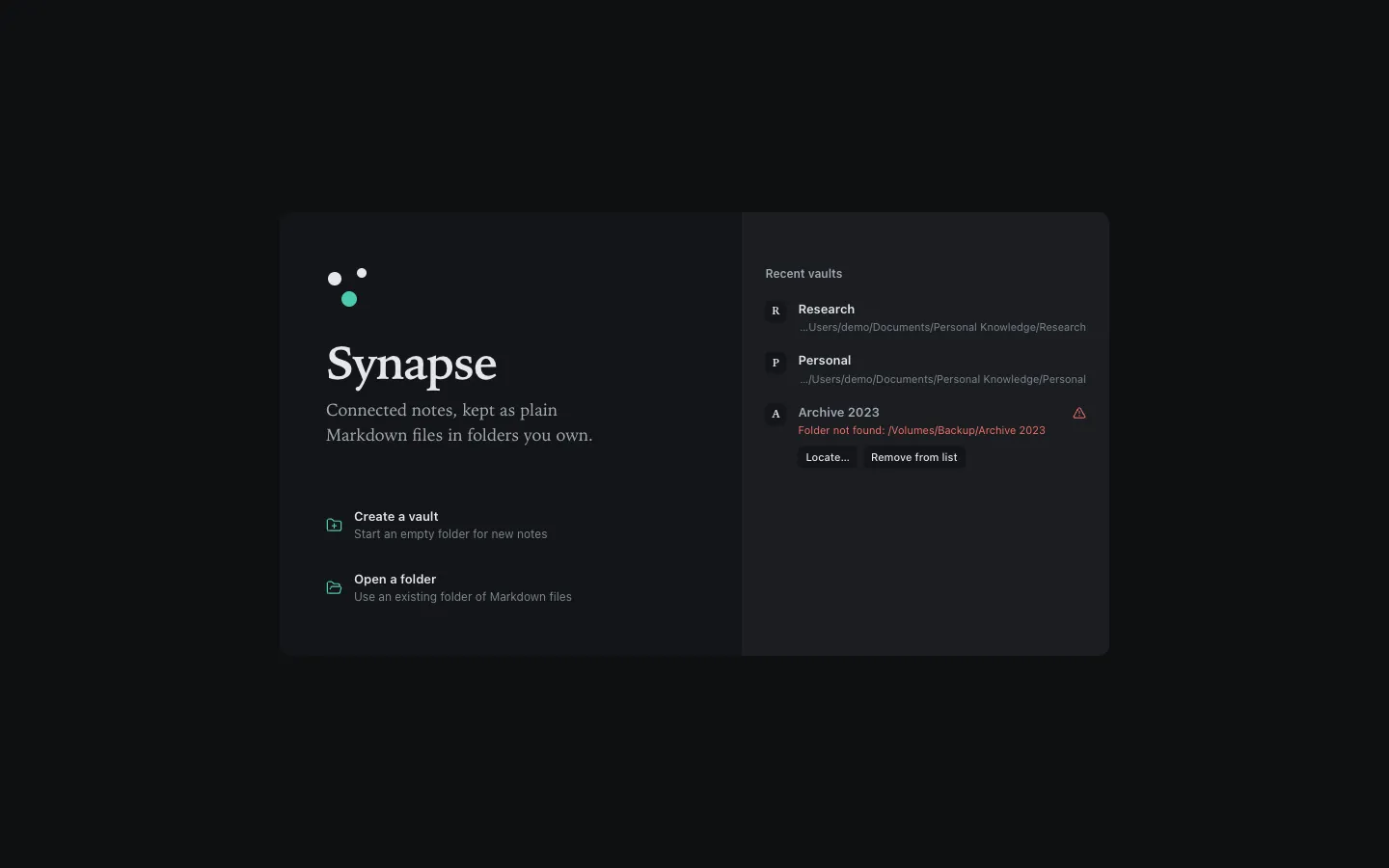
Open a vault. On the starter screen choose Open folder as vault to use an existing folder of Markdown files, including a vault from another app, or Create new vault to start a new folder.
-
Write a note. Press ⌘N. The note starts as
Untitled.mdwith the title focused: type a name and it becomes the file name. Notes save automatically while you write. -
Link it. Type
[[and a few letters of another note. Pick a suggestion with Enter. Linking to a note that does not exist yet and following the link creates it. -
Follow the link back. Open the other note: its Backlinks panel, on the right, lists the note you came from, with the line around the link.
Good to know
Section titled “Good to know”- Synapse writes only one folder inside a vault,
.synapse/, for vault settings and open tabs. It never modifies an existing.obsidian/folder. - Create new vault refuses a folder that already exists, so it never mixes with other files.
- If a recent vault was moved or deleted, it is flagged as unavailable with Locate… and Remove. Synapse never recreates a missing folder empty.
Find your way around
Section titled “Find your way around”| Action | Shortcut |
|---|---|
| Jump to a note | ⌘O |
| Command palette | ⌘P |
| Search all notes | ⇧⌘F |
| Graph | ⌘G |
| Reading / editing view | ⌘E |
| Settings | ⌘, |
Next: the editor and links and backlinks.
Still stuck?
Check Troubleshooting or open an issue on GitHub with your Synapse and macOS versions.
MIT licence · Made for macOS