
The editor
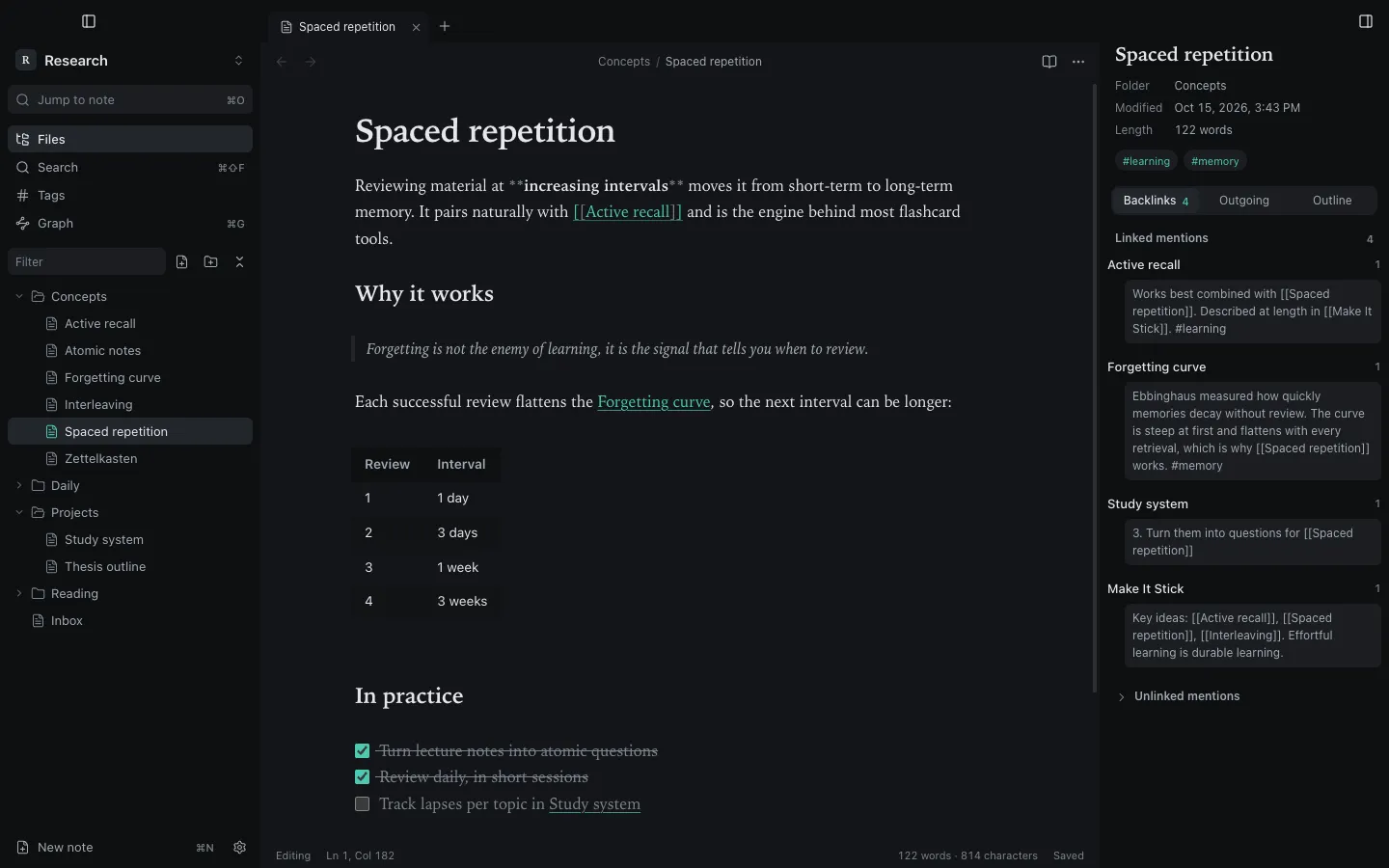
The editor is built on CodeMirror 6 and edits the Markdown file directly. Nothing is stored in another format.
Live Preview
Section titled “Live Preview”With Live Preview on (Settings → Editor, on by default), Markdown syntax hides itself except on the line you are editing: headings show without #, bold without **, links show only their text, task markers become checkboxes. Move the cursor onto a line to see and edit its source. The file on disk always keeps the full Markdown.
Turn Live Preview off to see the raw Markdown everywhere.
Tables
Section titled “Tables”Outside the cursor, Markdown tables render as a grid you can type into directly. Each cell edit rewrites the Markdown table, aligned and undoable.
- Enter moves to the cell below; Escape returns to the text.
- + Row adds a row at the end.
- Edit as Markdown puts the cursor in the table source.
LaTeX math renders with KaTeX, in Live Preview and in the reading view:
Inline $E = mc^2$ in a sentence.
$$\int_0^1 x\,dx$$
Invalid TeX shows as red source text instead of breaking the note. Prices such as $5 and $10 stay plain text.
Links while you type
Section titled “Links while you type”Type [[ to get suggestions from the vault, ranked as you type. Choosing one inserts the shortest unambiguous link text. See links and backlinks.
Formatting shortcuts
Section titled “Formatting shortcuts”| Action | Shortcut |
|---|---|
| Bold / italic / link | ⌘B / ⌘I / ⌘K |
| Toggle checkbox | ⌘L |
| Find in note | ⌘F |
| Undo / redo | ⌘Z / ⇧⌘Z |
All shortcuts can be changed in Hotkeys.
Images and attachments
Section titled “Images and attachments”Paste or drop a file into the editor. Synapse saves it to the vault’s attachment folder and inserts ![[file name]]. The attachment folder is a vault setting: the vault root, a folder of your choice, or ./ for the same folder as the note.
Saving
Section titled “Saving”Notes autosave shortly after you stop typing, and also when you close a tab, switch vault or quit. Writes are atomic: a crash cannot leave a half-written file. If the file changed on disk while you had unsaved edits, Synapse shows a conflict banner instead of overwriting; see Troubleshooting.
Still stuck?
Check Troubleshooting or open an issue on GitHub with your Synapse and macOS versions.
MIT licence · Made for macOS